
A clone gives an app another space on your phone. You sign in to that space yourself; it does not automatically bring over the login or history from your original app.
1. Install MultiX and your original app
Get MultiX from Google Play. Install the app you want to clone on your phone first. MultiX requires Android 8.0 or later; Google Play will show availability for your device and region.
Read the privacy information when you open MultiX. Review permission requests as they appear and allow the permissions needed for the features you choose to use.
2. Tap + and choose an app
Tap the + button on the MultiX home screen. Search for or select an app already installed on your phone, then follow the creation prompts. When it is ready, its icon appears in MultiX.
The free version allows one clone per app. More copies and batch creation require VIP. If the app is not supported, creating additional copies will not resolve that compatibility issue.
3. Open the clone and sign in
Tap your new clone and sign in using the account you want to use there. The app may ask you to complete its normal verification steps. MultiX does not provide accounts, phone numbers or verification codes.
You can return to MultiX to open your clone again. Long-press its icon to see available management options, including naming and shortcut options. Desktop shortcuts depend on your phone’s launcher and any system confirmation it requires.
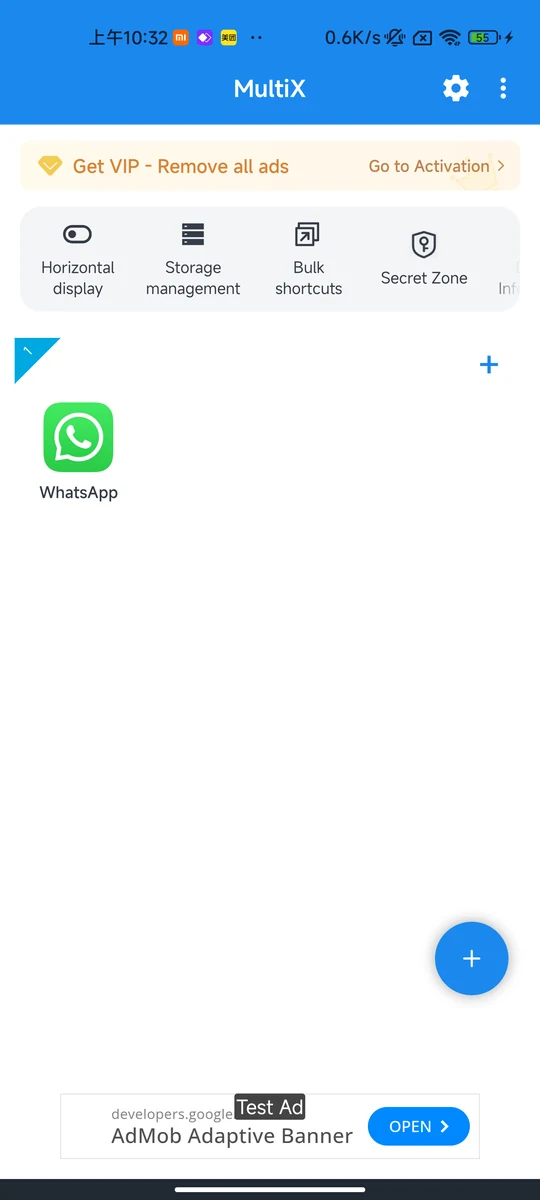
Captured MultiX interface. The screenshot does not demonstrate a logged-in account; appearance can vary by version.
Find the guide inside MultiX
From the home screen, open Settings → User guide to revisit the introduction and guided setup. For troubleshooting, use More → Help & support.
If the clone does not open
Check that the original app is still installed and that MultiX and the original app are up to date. If the issue continues, send support your phone model, Android version and both app versions. Avoid clearing app data as a first step: it can remove information stored in your cloned spaces.